Run Algorithm on Single Input
Prerequisites
Before you can run an algorithm, you need to
How to run an Algorithm on a Single Input
- 1
-
2
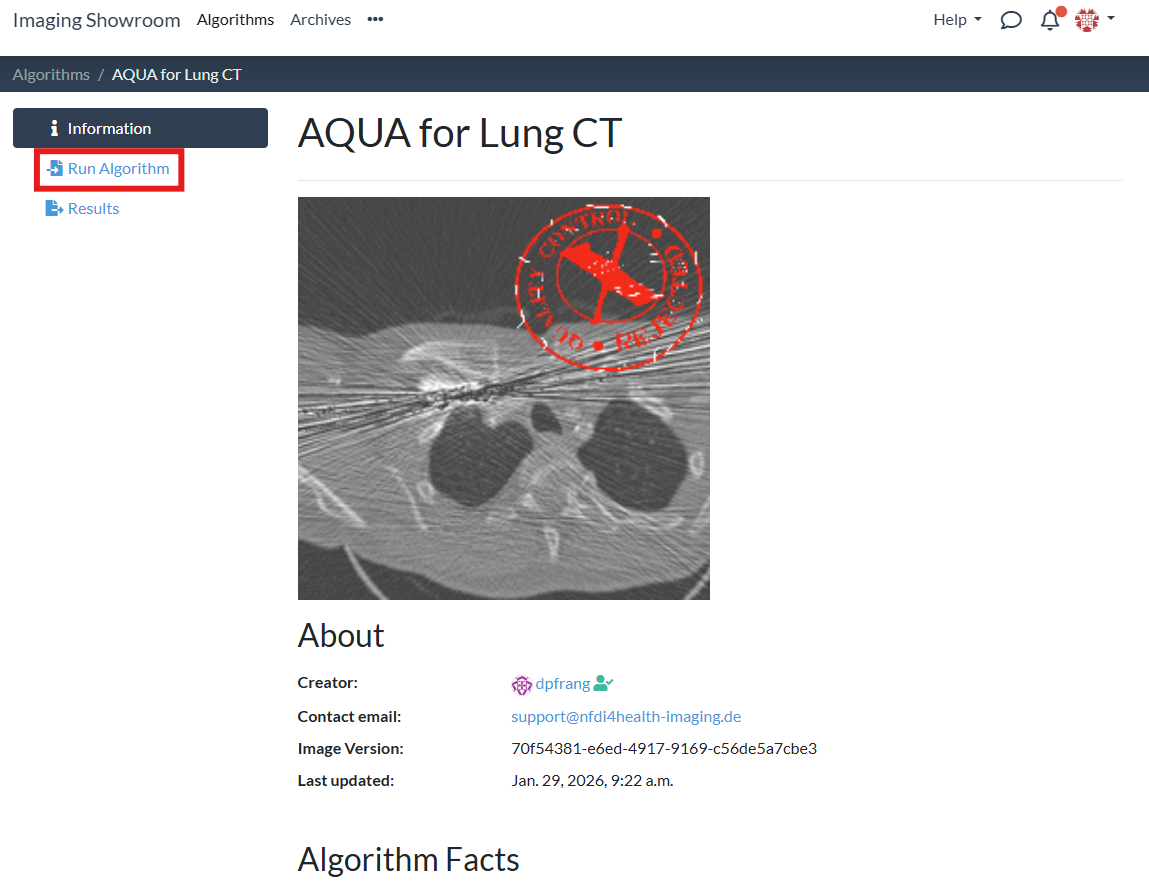
Open the "Run Algorithm" tab:
-
3
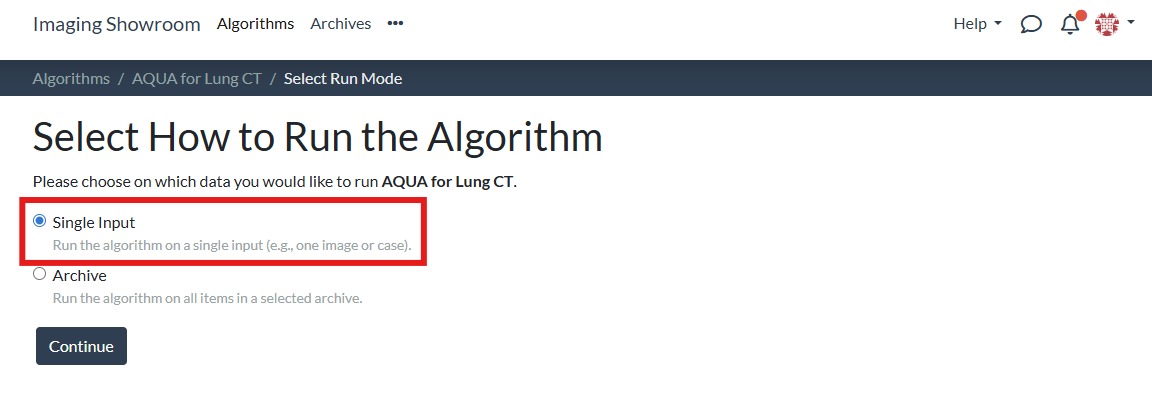
Select "Single Input" (in contrast to running the algorithm on an archive that might contain multiple images):
- 4
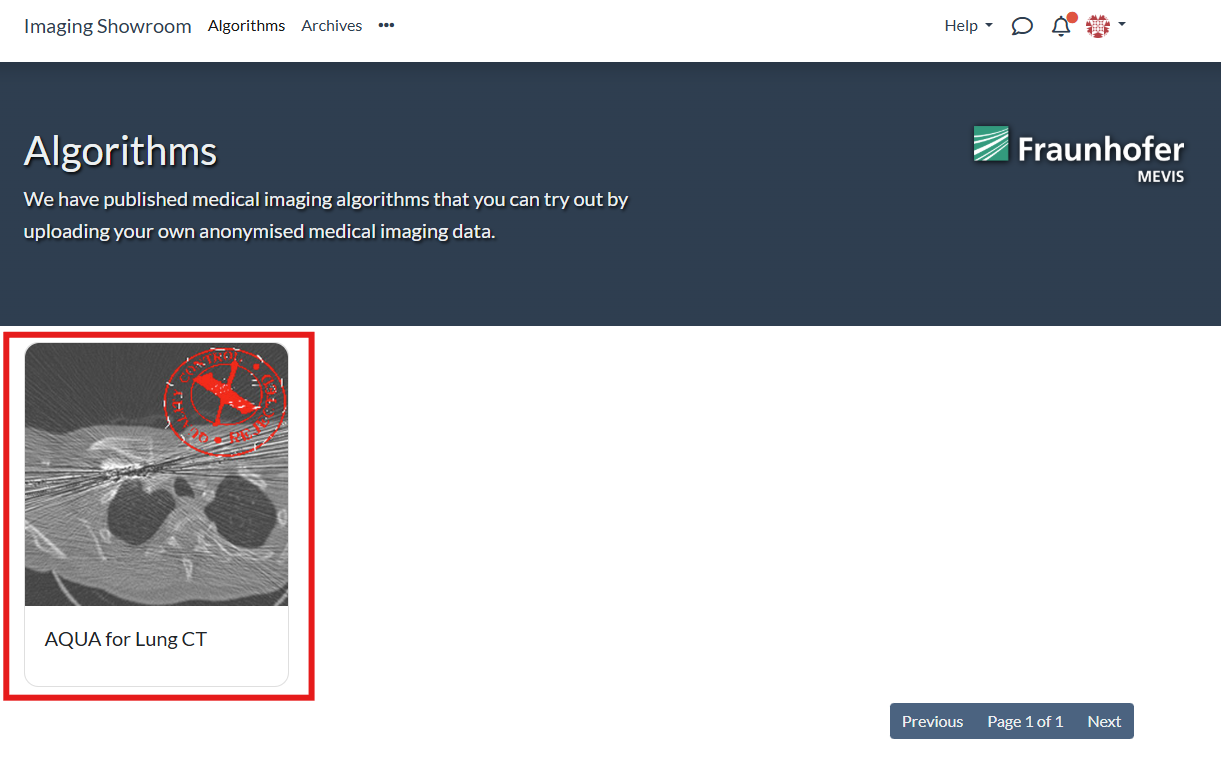
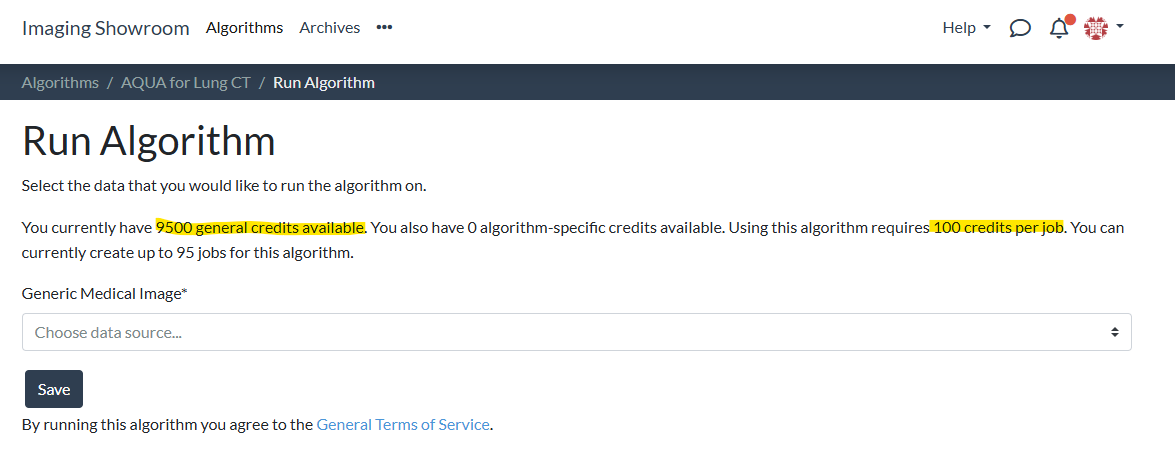
Next, you have two ways to proceed. You can either select an existing image or upload a new image for running the algorithm.
Select an Existing Image
Existing images are those that you have previously uploaded yourself or that are contained in an archive that you can access. In the latter case, it is sufficient to have the User role for the archive. Let us see how to execute an algorithm on an existing image:
-
1
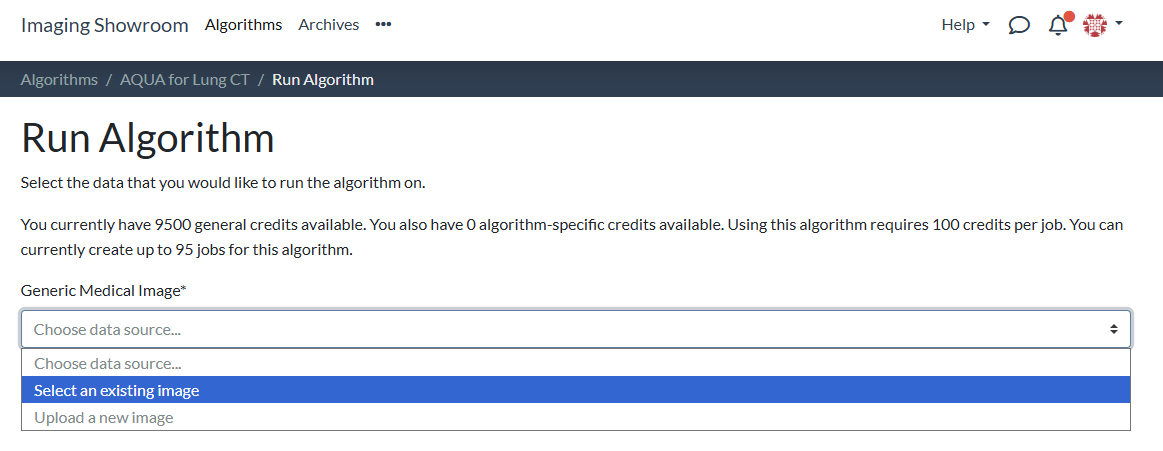
Choose "Select an existing image" as the data source:
-
2
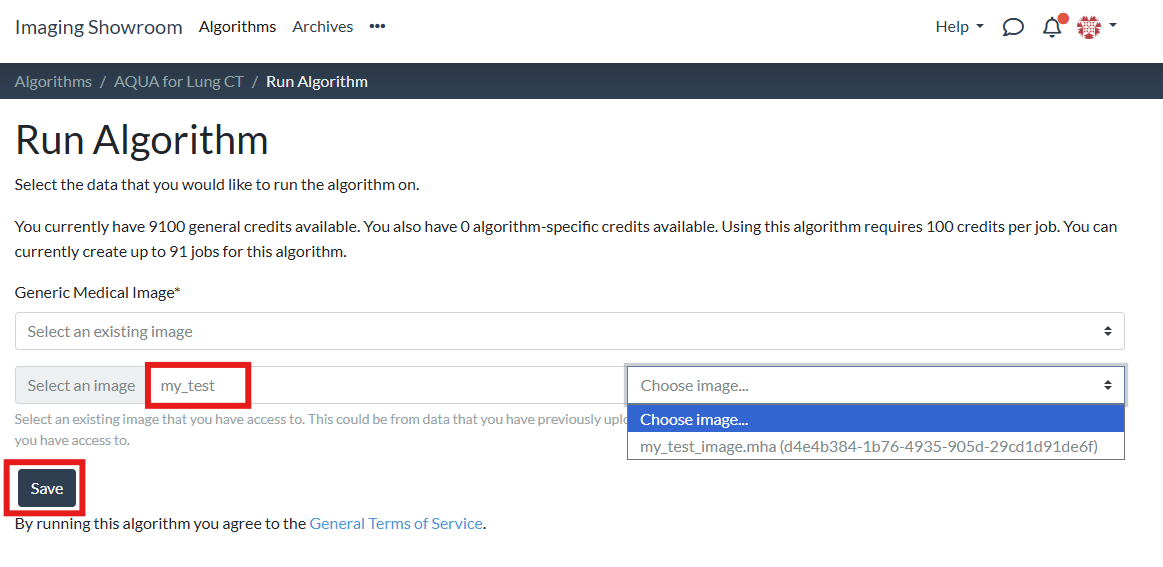
Select an existing image (you can filter by image name) and click Save to start the job:
Upload a new image
-
1
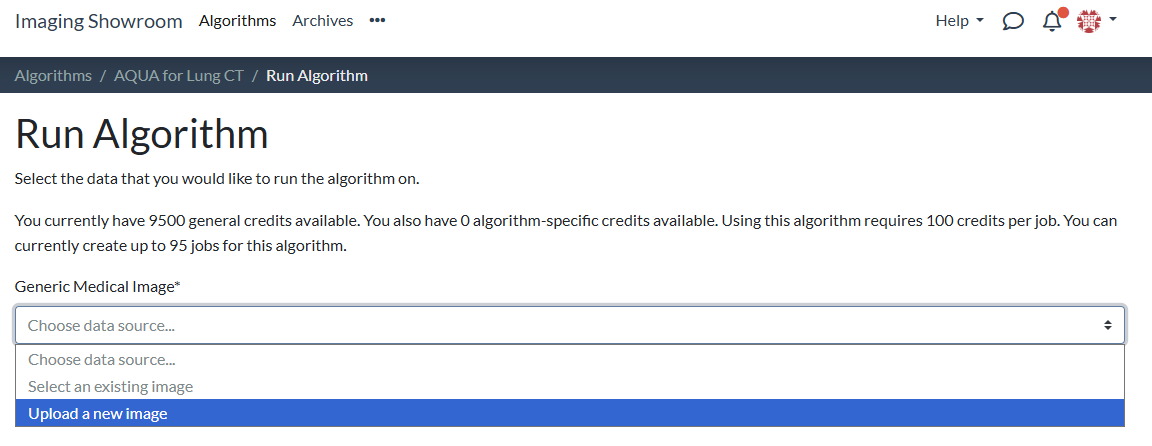
Choose "Upload a new image" as the data source:
-
2
Use the upload widget to upload the image. See how to upload data for archives for information on how to prepare the data (archives use the same upload widget as for single images). However, you are only allowed to upload a single image in the current context.
-
3
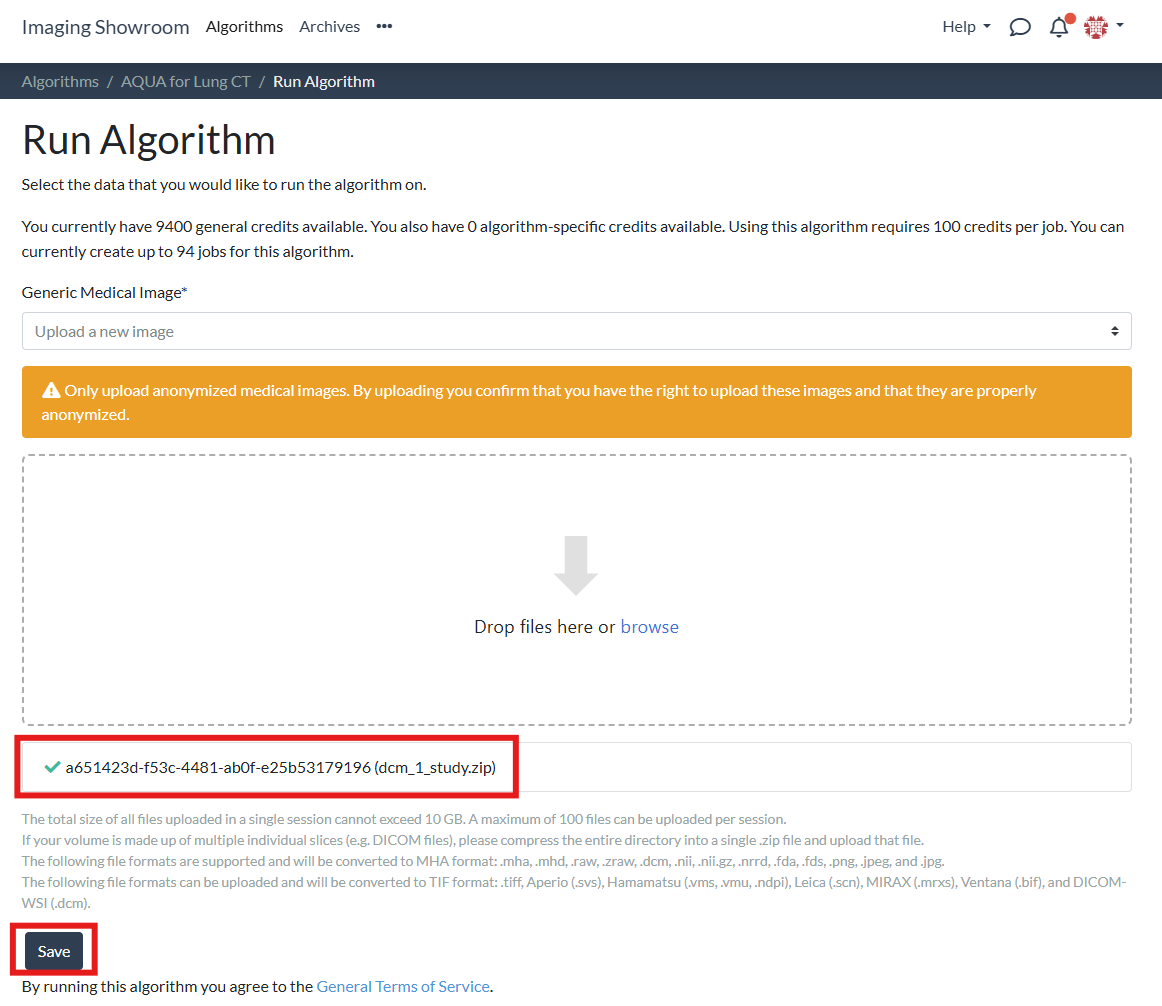
Once the upload has finished, click Save to start the job:
Monitoring Jobs
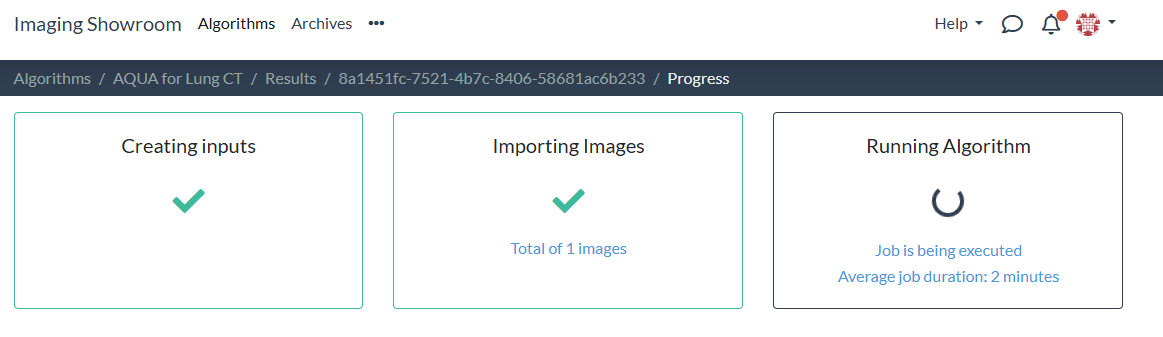
After you have started a new job, you can monitor its progress:
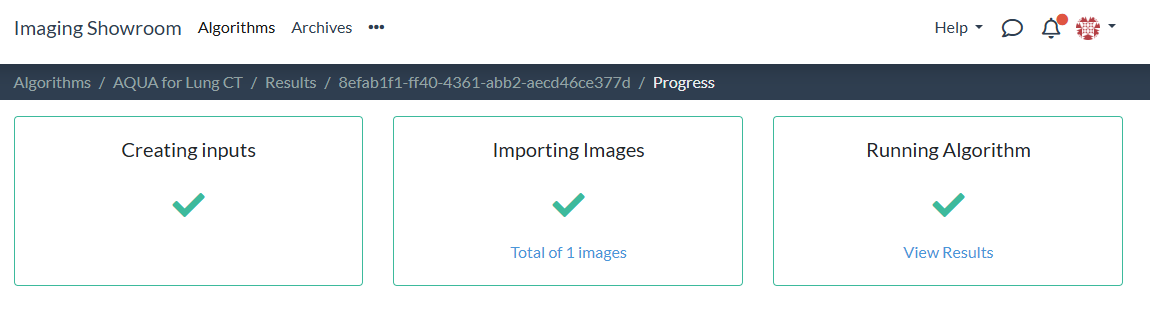
Once the job has finished, the status shows if the job ended successfully or not. A successful job status looks like this:
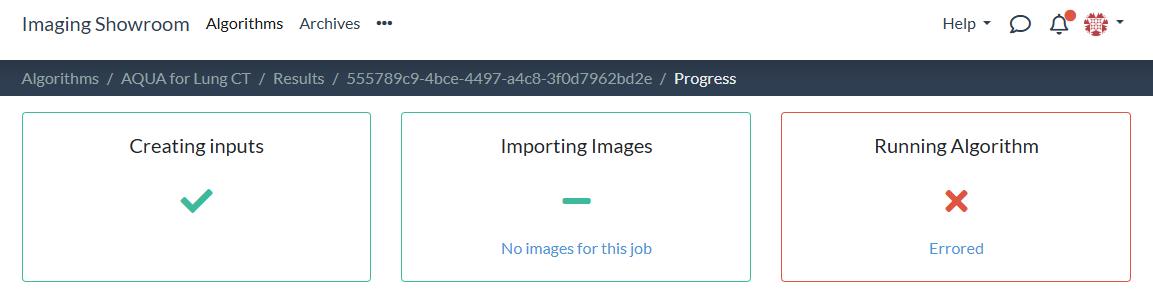
A failed job looks like this:
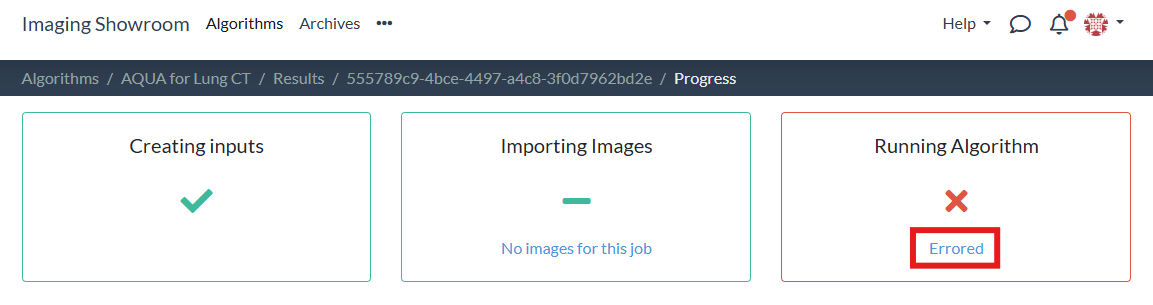
In the "Running Algorithm" box, you can click on the algorithm status to navigate to see further details:
The job results page contains further detail, e.g. on why a job has failed:
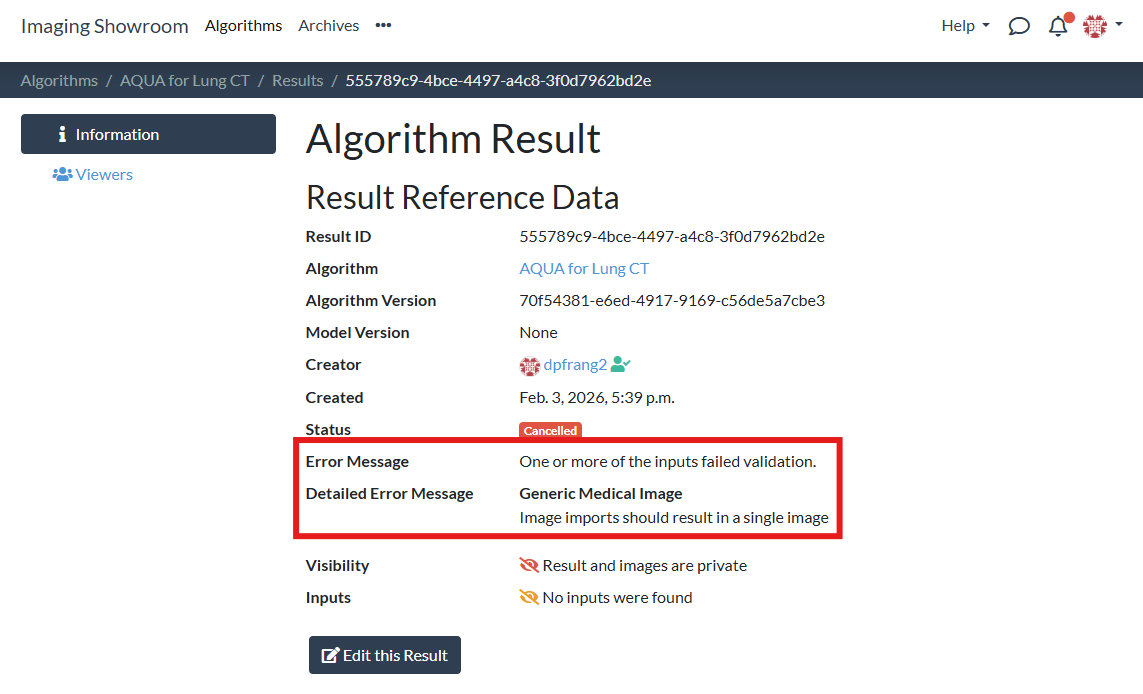
In case you have a failed job and you are not sure why the job has failed and how to fix it, please contact the support.